How to Scan Your Website for Errors Effectively

Scanning your website for errors is the process of systematically identifying technical, content, and usability issues that harm your search rankings and user experience. A proper website error scan covers broken links, missing meta tags, spelling mistakes, security gaps, and mobile usability problems. Each of these issues chips away at visitor trust and can push your site lower in search results. Proactive scanning catches problems before they cost you traffic or customers. This guide walks you through every category of error to find, the tools that find them, and how to fix what matters most.
What types of errors should you scan for on your website?
A complete website scan for issues covers six major error categories. Knowing each one helps you understand what your scanner is reporting and why it matters.
Technical SEO errors include broken internal and external links, crawl blocks caused by misconfigured robots.txt files, accidental noindex tags on pages you want indexed, and missing or duplicate title tags. These errors directly prevent search engines from reading and ranking your content.

On-page content issues cover missing meta descriptions, duplicate content across multiple URLs, and spelling or grammar mistakes. Spelling errors on websites reduce credibility fast. A single misspelled word on a product page can make a visitor question whether your business is trustworthy.
Performance bottlenecks include slow page load times and poor Core Web Vitals scores. Google uses Core Web Vitals as a direct ranking factor, so a site that loads slowly loses ground to faster competitors.
Mobile usability errors involve incorrect viewport settings and tap targets that are too small for touchscreens. A page that looks fine on a desktop can be nearly unusable on a phone.
Security vulnerabilities are often overlooked during standard SEO audits. SPF, DKIM, and DMARC validation protect your domain from phishing and spoofing attacks that damage your sender reputation and brand trust.
Structured data errors occur when schema markup is missing or malformed. Correct schema helps search engines display rich results like star ratings, FAQs, and product prices directly in search listings.
Pro Tip: Run a quick check on your robots.txt file and sitemap before any deep scan. A misconfigured robots.txt can block your entire site from being crawled, making every other fix irrelevant.
What tools do you need to scan your website for errors?
Choosing the right website error scanner depends on your site’s size, technology stack, and the depth of analysis you need.
Full-site audit tools are the most thorough option. Professional audit tools analyze over 200 ranking signals and more than 40 issue categories across technical, on-page, performance, mobile, and structured data checks. That breadth means one scan surfaces problems you would otherwise need five separate tools to find. Some advanced AI-powered tools crawl up to 2,000 pages with no registration required for initial audits, which removes friction for first-time users.
Lightweight checkers are useful for quick, targeted checks. A broken link checker scans all internal and external links on a page in seconds. Page speed tools like Google PageSpeed Insights give you a Core Web Vitals score and specific recommendations for each page.
One technical distinction matters a lot: JavaScript rendering vs. static HTML analysis. Some free tools only analyze static HTML, missing client-side rendered content in JavaScript-heavy sites. If your site uses React, Vue, or Angular without server-side rendering, a static scanner will miss large portions of your content entirely. Choose a tool that renders JavaScript before crawling.
| Feature category | Entry-level tools | Advanced tools |
|---|---|---|
| Crawl depth | Single page or shallow | Up to 2,000+ pages |
| Error categories covered | 5–10 basic checks | 40+ categories |
| JavaScript rendering | No | Yes |
| Reporting and prioritization | Basic list | Weighted impact scoring |
| Registration required | No | Optional or required |
| Security checks (SPF/DMARC) | Rarely | Yes |
- Match your tool to your site size. A 10-page brochure site needs a different approach than a 500-page e-commerce catalog.
- Use a dedicated spelling and grammar checker alongside technical audit tools. Technical scanners rarely catch subtle language errors.
- Websitespellchecker offers AI-powered scanning for up to 50 pages free, covering spelling and grammar errors that standard SEO tools ignore.
How do you perform a step-by-step website error scan?
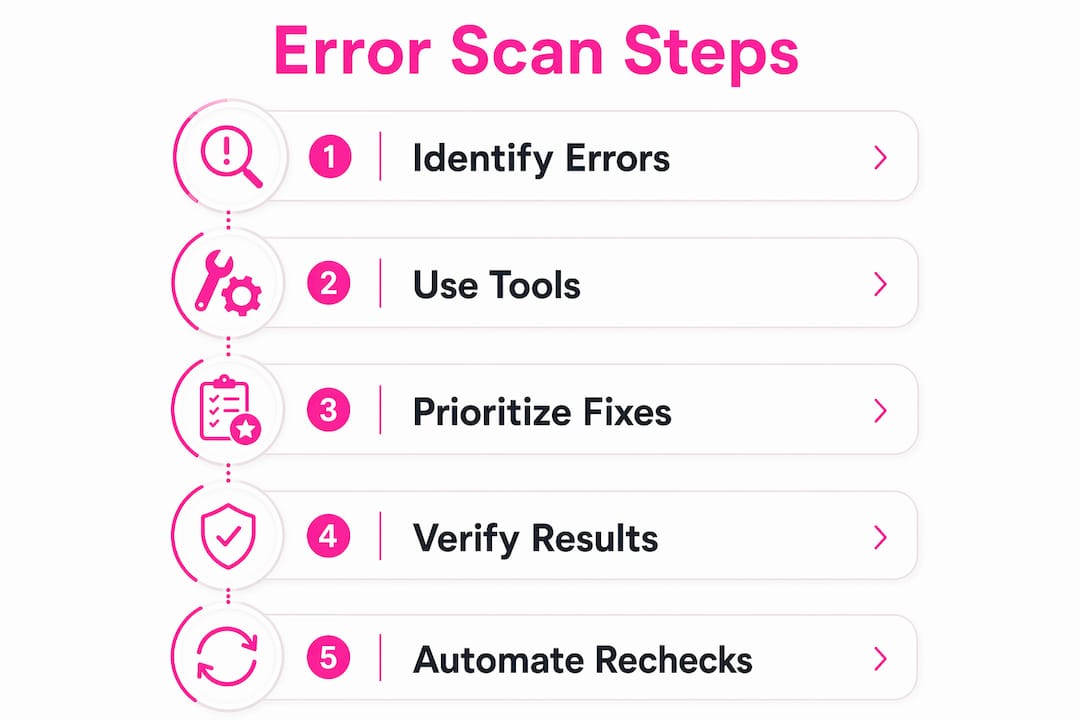
A structured process produces better results than running a scan and hoping for the best. Follow these steps to get a complete picture of your site’s health.
-
Prepare your URL list. Gather your sitemap and identify your most important pages: homepage, product or service pages, blog posts with high traffic, and any pages linked from your main navigation. Decide whether you need a shallow scan (top 50 pages) or a deep crawl (entire site).
-
Run an initial scan on your core pages. Start with your homepage and primary landing pages. This gives you a fast read on the most visible errors before committing to a full crawl.
-
Analyze the report by impact, not volume. Audit tools prioritize detected errors by impact, using weighted scoring to rank which fixes matter most. Focus on HTTPS misconfigurations, missing H1 tags, and crawl blocks before worrying about minor issues like image alt text on decorative images.
-
Run manual checks for JavaScript-rendered content. If your site uses a JavaScript framework, view the page source in your browser and compare it to what the scanner reports. Content that appears in the browser but not in the source is invisible to static scanners and likely invisible to search engines too.
-
Cross-check security settings. Use a DNS lookup tool to verify your SPF and DMARC records. Security infrastructure auditing goes beyond SEO and protects your domain from being used in phishing campaigns.
-
Document your findings. Export the scan report and tag each issue with a priority level: critical, moderate, or low. This becomes your fix list and your baseline for measuring progress.
Pro Tip: Schedule automated recurring scans monthly or after every major site update. Many tools send alerts when new errors appear, so you catch problems within hours instead of weeks.
How should you prioritize and fix errors found during a scan?
Not all errors carry equal weight. Fixing high-impact issues first ensures you get the biggest improvement in rankings and user experience for the least effort.
Start with these critical issues:
- HTTPS misconfiguration. A site serving pages over HTTP instead of HTTPS triggers browser security warnings. Visitors leave immediately, and Google treats it as a trust signal failure.
- Crawl blocks and noindex errors. A page accidentally tagged noindex disappears from search results entirely. This is silent and damaging.
- Missing title tags and meta descriptions. SEO checkers prioritize these fixes because they directly affect click-through rates from search results. Fixing them improves organic traffic in subsequent months.
- Broken links. A 404 error on a page linked from your homepage signals poor site maintenance to both visitors and search engines.
After critical issues, address moderate problems like missing image alt text, slow-loading pages, and duplicate content. These matter but rarely cause immediate ranking drops.
Technical SEO scores can be misleading. A site can score well overall while hiding silent errors like DMARC gaps or misconfigured noindex headers that significantly impair operations. Always check the details behind the score, not just the number at the top of the report.
Verify every fix by re-scanning the affected pages. A fix that looks correct in your CMS does not always deploy correctly to the live site. Re-scanning confirms the issue is resolved and updates your baseline.
What are common mistakes in scanning a website for errors?
Several avoidable mistakes reduce the value of a website scan. Recognizing them saves you time and prevents false confidence.
Relying only on Google Search Console is the most common mistake. Google Search Console is reactive and may miss silent failures like misconfigured noindex headers or DMARC gaps. It reports problems after they have already affected your rankings. Proactive scanning tools catch these issues before damage occurs.
Ignoring JavaScript-rendered content is a technical blind spot. Many scanners miss JavaScript-rendered content if the site lacks server-side rendering. If your scanner does not render JavaScript, you may believe your site is healthy while search engines see empty pages.
Scanning once and stopping is another costly error. Regular quarterly audits and continuous monitoring yield better long-term visibility by catching emerging issues early. A site that passes a scan in january can develop new errors by march after a plugin update or content migration.
| Approach | Reactive scanning | Proactive scanning |
|---|---|---|
| When issues are found | After ranking drops | Before damage occurs |
| Coverage | Reported errors only | Full site, all categories |
| Security checks | Rarely | Yes |
| Frequency | On demand | Scheduled and automated |
| Best for | Diagnosing known problems | Preventing unknown problems |
Pro Tip: Complement automated scans with a manual audit of your top 10 pages every quarter. Read each page as a visitor would. Automated tools catch structural errors; human eyes catch tone, clarity, and content gaps that no scanner flags.
Key Takeaways
Proactive, multi-category website scanning is the most reliable way to protect your search rankings, user trust, and site security before problems become visible.
| Point | Details |
|---|---|
| Cover all six error categories | Scan for technical SEO, content, performance, mobile, security, and structured data issues every time. |
| Choose tools that render JavaScript | Static HTML scanners miss content on JavaScript-heavy sites, creating a false sense of health. |
| Prioritize by impact, not volume | Fix HTTPS errors, crawl blocks, and missing title tags before addressing minor issues. |
| Scan proactively, not reactively | Google Search Console reports problems after rankings drop; proactive tools catch them first. |
| Schedule recurring scans | Quarterly audits and automated alerts catch new errors before they compound. |
Why hidden errors are the ones that hurt you most
Hidden errors are the ones that cost you the most. A broken link on a rarely visited page is annoying. A misconfigured noindex tag on your top product page is a disaster. The problem is that both look identical from the outside: the page loads, the design looks fine, and nothing in your analytics flags it immediately.
Working with websites over many years, I have seen the same pattern repeat. A site owner runs a manual check, finds nothing alarming, and assumes the site is healthy. Months later, organic traffic drops and the investigation reveals a noindex tag that was accidentally added during a template update six weeks earlier. The fix takes five minutes. The traffic recovery takes three months.
The lesson is not that manual checks are useless. They catch what they catch. The lesson is that automated scanning catches what manual checks miss, especially on large sites where no human can realistically read every page. The most effective website owners I have worked with treat scanning as a routine, not a reaction. They run scans after every significant update, review the prioritized report, and fix the top issues before moving on.
The shift from reactive to proactive is not complicated. It just requires building the habit. Once you see how many silent errors a single scan surfaces on a “healthy” site, you will not go back to checking manually.
— Website
Websitespellchecker makes your website error scan simple
Your website represents your business. Errors in spelling, grammar, or technical structure chip away at the trust you have built with every visitor.
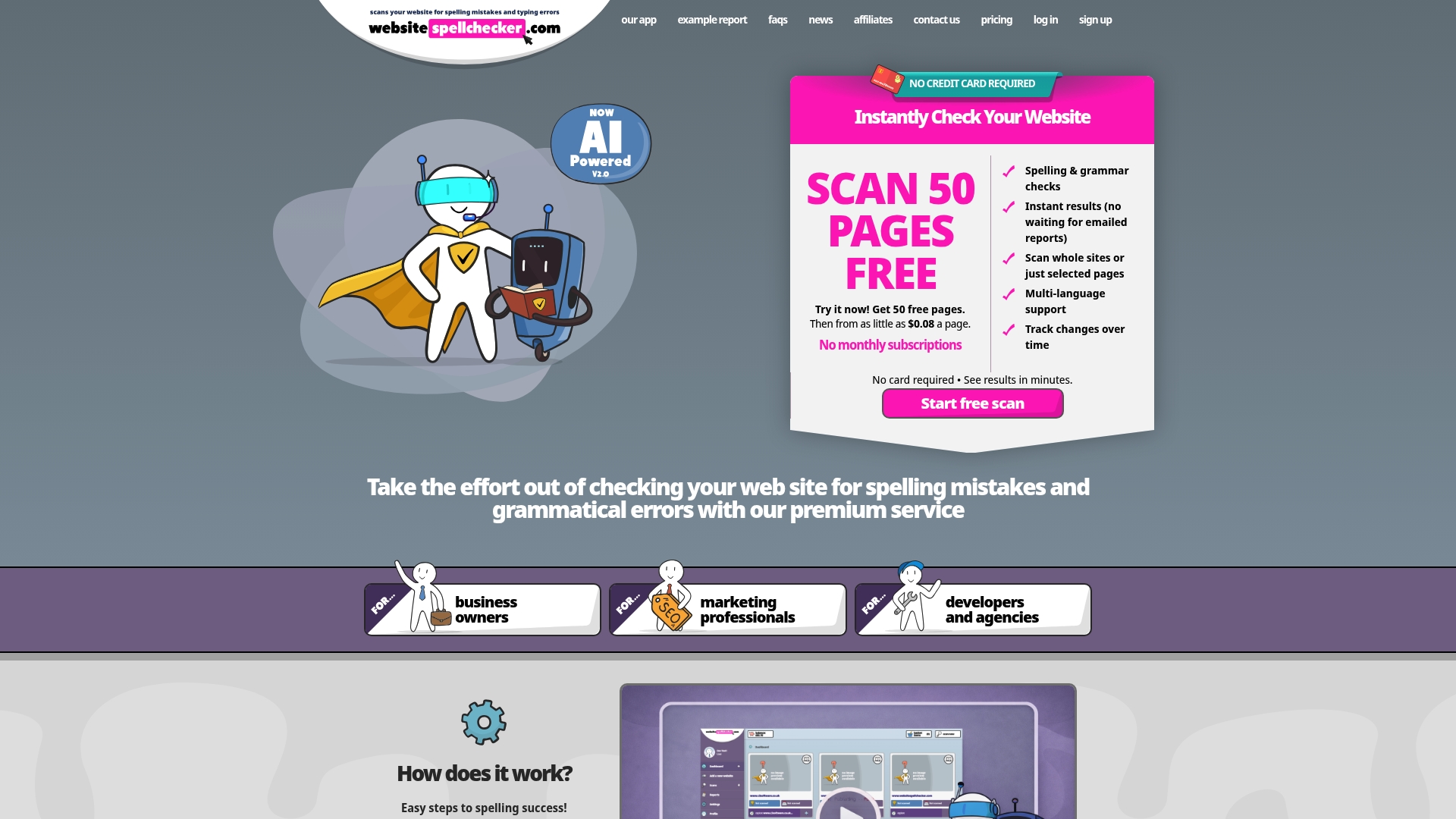
Websitespellchecker uses AI scanning technology to check your entire site for spelling and grammar errors in one pass, covering up to 50 pages free with no setup required. It tracks changes over time, so you always know whether your fixes held and whether new errors have appeared. Business owners get a clear, prioritized report that shows exactly what to fix first. Marketing professionals get the confidence that every page reflects the quality their brand promises. Explore the available packages and run your first scan today.
FAQ
What does it mean to scan a website for errors?
Scanning a website for errors is the process of using automated tools to detect technical, content, security, and usability issues across your site’s pages. The goal is to find problems that harm search rankings or visitor experience before they cause measurable damage.
How often should I run a website error scan?
Quarterly audits combined with continuous monitoring produce the best long-term results. Run an additional scan after any major site update, CMS upgrade, or content migration.
Can free tools fully scan my website for issues?
Free tools cover basic checks but often miss JavaScript-rendered content and security issues like DMARC validation. For a complete website scan for issues, use a tool that renders JavaScript and includes security infrastructure checks alongside standard SEO analysis.
What is the first error I should fix after a scan?
Fix HTTPS misconfigurations and accidental noindex tags first. These two error types can remove pages from search results entirely and trigger browser security warnings, making them the highest-priority items on any website errors list.
Does Websitespellchecker check for more than spelling errors?
Websitespellchecker focuses on spelling and grammar errors across your entire site, which standard technical audit tools consistently overlook. It complements technical scanners by ensuring your content quality matches your site’s structural health.